Installation
This page covers the software you'll need to interact with the Sound Card, as well as how to update the firmware on the device.
Software packages
These steps are only required the first time you connect the device to a new computer, and you can install just the packages for the functionality you need.
The WinUSB driver is required to upload waveforms to the onboard sound memory bank.
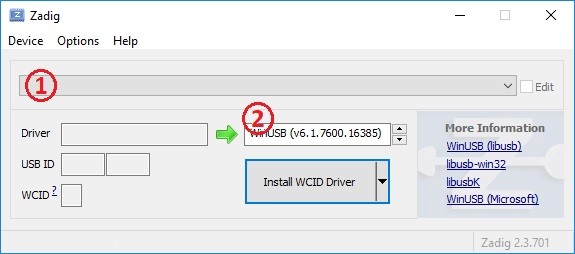
- Download and launch Zadig.
- Connect the USB (Soundbank) cable to the computer.
- Select "Harp Sound Card" from the list. If the device is not available, go to "Options" > "List All Devices".
- Select the "WinUSB" driver and click "Install Driver".
Firmware update
New features are added and bugs are fixed with firmware updates which are published on the release page in the device GitHub repository. Each release contains .hex files tagged with the firmware (fw) and hardware (hw) version. For instance, SoundCard-fw3.0-harp1.15-hw2.2-ass0.hex is firmware v3.0 for a hardware v2.2 Sound Card. Download these two hex files from the "Assets" section under each release, making sure that the hw version matches the hardware version of the device:
SoundCard-*.hex- Firmware for the 8-bit device interface microcontroller.SoundCard.PIC32-*.hex- Firmware for the 32-bit sound memory microcontroller.
Tip
The hardware version is printed on the board silkscreen (e.g. harp sound card v2.2).
The firmware is updated from a terminal with the Harp Toolkit, a command-line tool for working with Harp devices. Like the Sound Card app, it is distributed as a .NET tool.
- Download and install the .NET SDK, version 8 or later.
- Install the toolkit from a terminal with:
dotnet tool install -g Harp.Toolkit
- Navigate to the folder containing the two downloaded
.hexfiles, and update the firmware with the serial port of the device and the file for the device interface microcontroller. The sound memory microcontroller file is loaded automatically at the same time:
harp.toolkit update --port COM3 SoundCard-fw3.0-harp1.15-hw2.2-ass0.hex
The toolkit checks that the file matches the device before writing it, and waits for the device to restart with the new firmware. Run harp.toolkit list to find the serial port of the device. The toolkit firmware update documentation describes every option.
Documentation for release v3.0.0